How to install NVIDIA NemoClaw ?

NemoClaw, in its simplest definition, is an open-source reference stack developed by NVIDIA to run OpenClaw more securely and manageably.
NVIDIA’s official documentation and GitHub repo also make this clear:
NemoClaw adds privacy and security controls over OpenClaw. It does this particularly through policy-based guardrails provided by NVIDIA Agent Toolkit and OpenShell.
Additionally, NemoClaw:
- Allows you to select which model runs locally
- Uses your existing compute resources
- Works with open-source models to offer cost and data privacy advantages when needed
Note: The project is currently in early preview / alpha stage.
What is OpenClaw?
OpenClaw is positioned at a different layer. It is a self-hosted gateway that runs on your own machine and connects the following messaging platforms to an AI agent:
- Telegram
- Discord
- iMessage
Through a single gateway process:
- Receives messages
- Forwards them to the agent
- Manages tool usage
- Controls sessions
It’s important not to confuse these two:
| OpenClaw | NemoClaw |
|---|---|
| The gateway platform where the agent runs | The layer that runs this agent more securely |
To put it more clearly: NemoClaw is a security-focused wrapper that runs OpenClaw in a sandbox, with guardrails and controlled inference options.
Core Components of NemoClaw
Sandboxing (isolation with OpenShell)
NemoClaw isolates the environment where the agent runs using OpenShell, effectively creating a sandbox. This means the agent does not have direct access to the host system, and all actions are executed within a controlled boundary. As a result, potential risks are minimized and unintended system-level side effects are prevented.
Policy-Based Guardrails
NemoClaw enforces policy-based guardrails to control agent behavior. These policies define what tools the agent can use, which commands are restricted, and how data can be accessed. This ensures that the agent operates within predefined limits, reducing the chances of unsafe or unpredictable actions.
Controlled Inference
NemoClaw also provides centralized control over model access and the inference process. You can define which model is used, whether it runs locally or remotely, and what resources it can consume. This not only improves efficiency but also provides strong advantages in terms of cost control and data privacy.
Installation
To install NemoClaw:
If you encounter any errors, please refer to the Troubleshooting section.
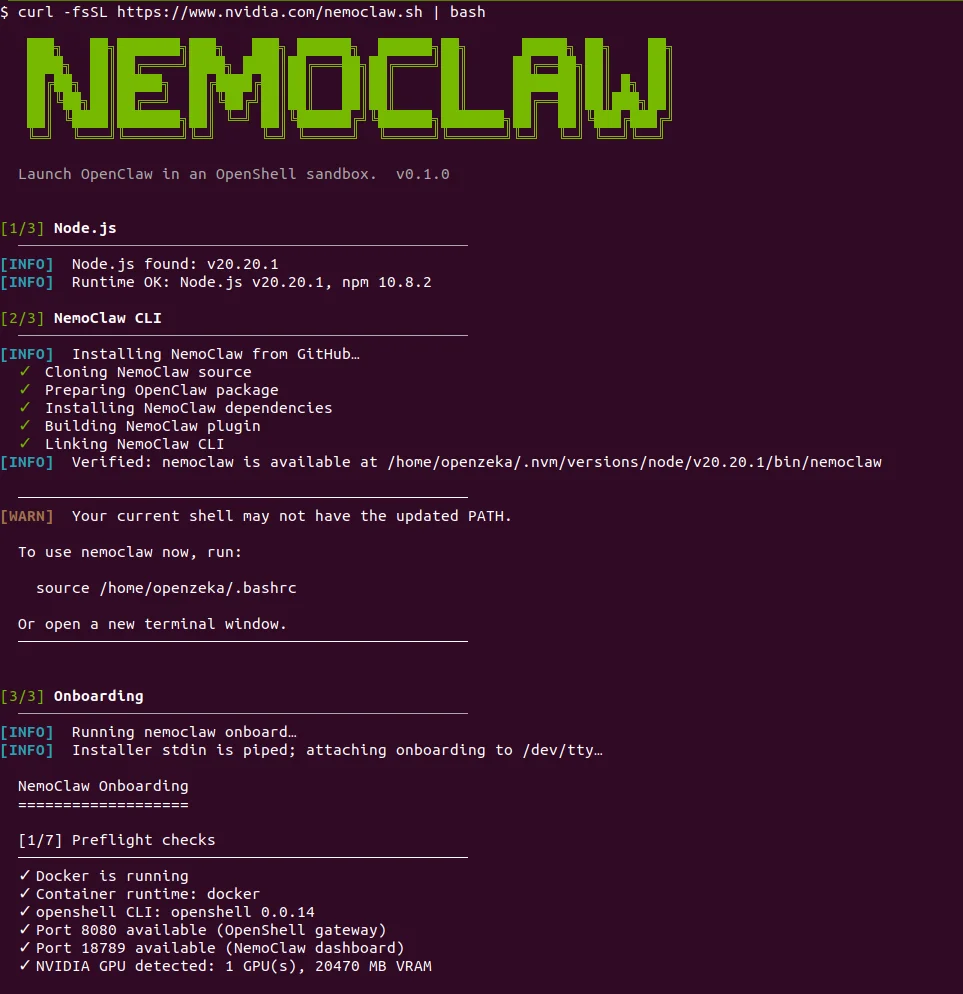
In this step, NemoClaw is automatically setting up everything needed to run your agent in a secure environment.
First, the OpenShell gateway is started. This acts as the core runtime that will manage your agent and handle communication. Once initialized, it exposes a local endpoint (127.0.0.1:8080) and confirms that the gateway is healthy.
Next, NemoClaw creates a sandbox environment for your agent. It builds a container image, uploads it to the gateway, and runs it in isolation. This is where your agent will actually execute, fully separated from your host system. A local port is forwarded so you can access the sandbox.
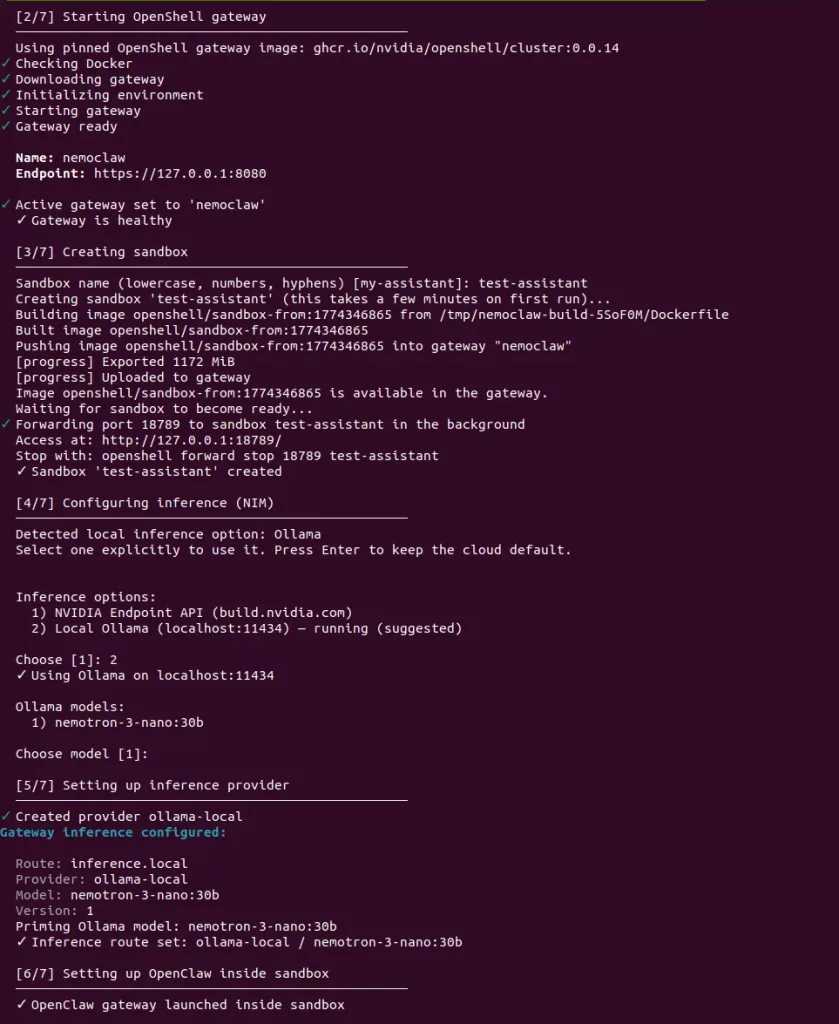
After that, NemoClaw moves on to inference configuration. It detects that you have a local Ollama instance running and lets you choose between cloud inference or local inference. In this case, local Ollama is selected, and the model nemotron-3-nano:30b is configured as the active model.
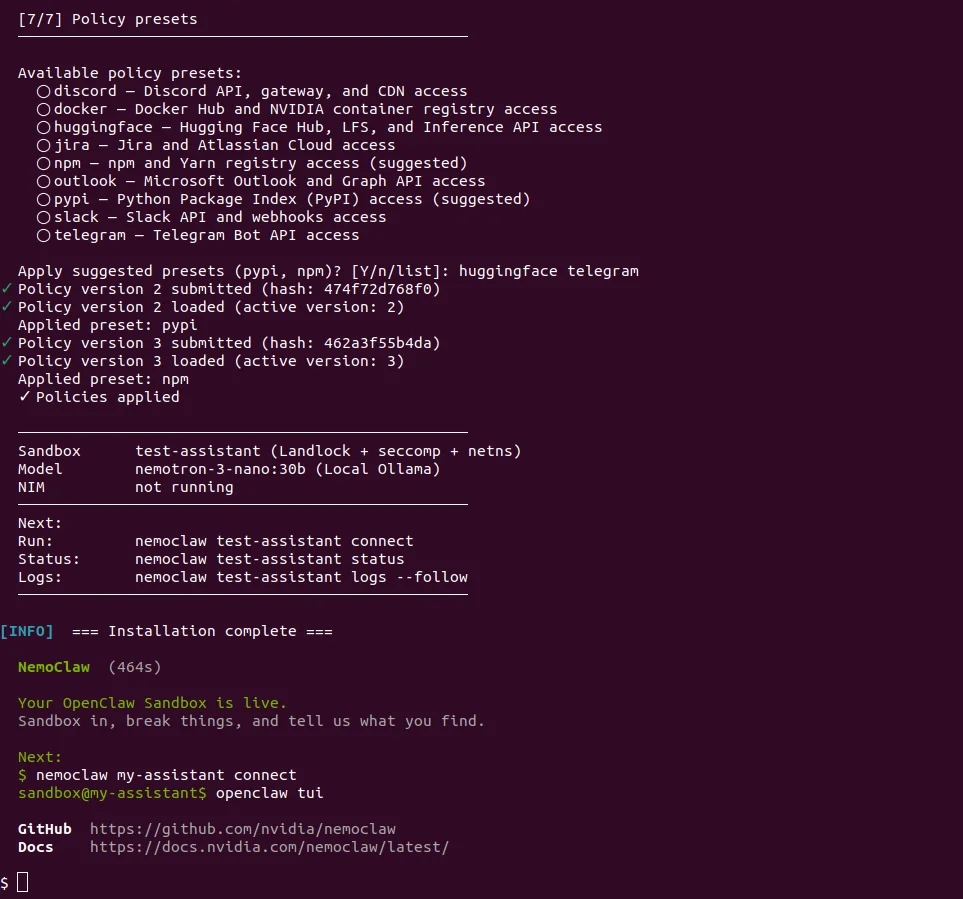
Then, run nemoclaw connect in your terminal using the name you assigned to your assistant. This will open a sandbox via OpenShell, where you can securely use OpenClaw.
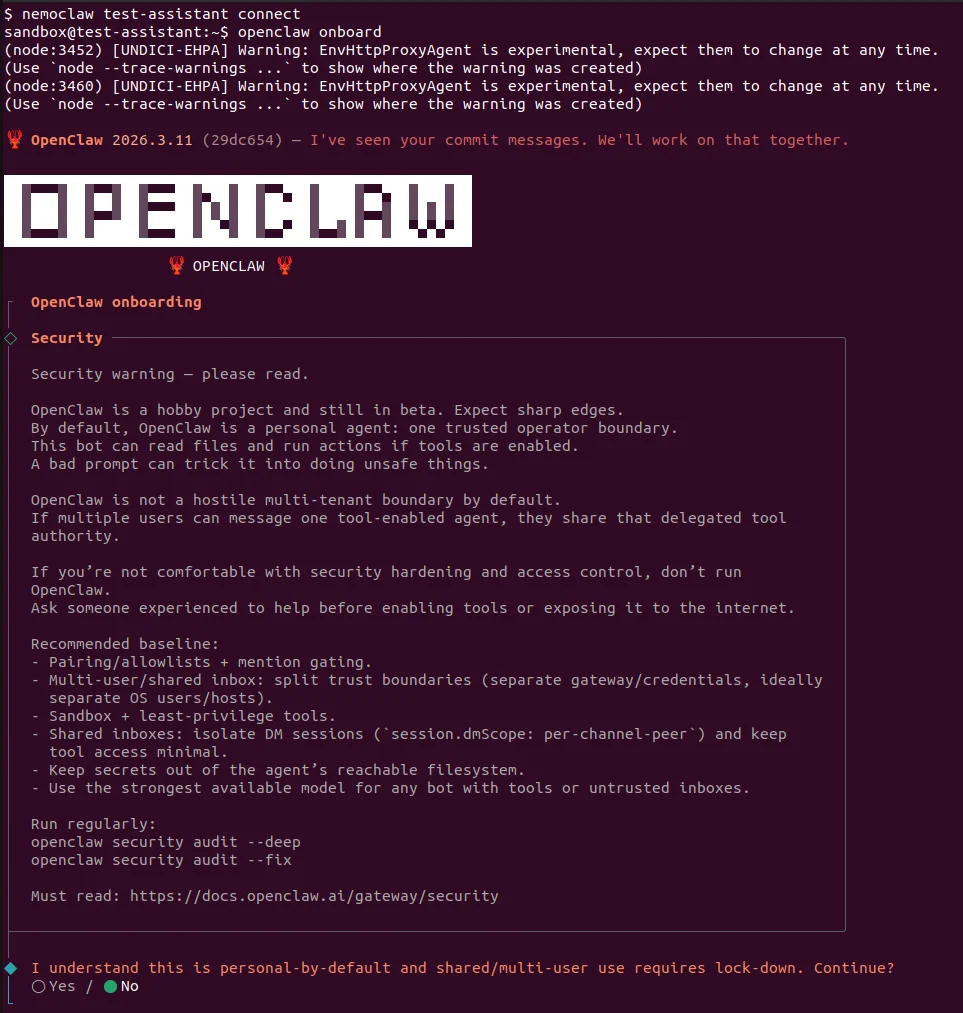
Running with Ollama
If you’re using a local model:
Then start the model:
Troubleshooting
Common errors you may encounter during installation and their solutions:
❌ curl: command not found
Curl is not installed on your system.
Solution:
❌ main: line 163: git: command not found
Git is missing.
Solution:
❌ port 11434 already in use
This error usually occurs when Ollama is already running.
Solution:
❌ Docker is not running. Please start Docker and try again.
Docker service is not running or not installed at all.
Installation: https://docs.docker.com/engine/install/
Status check:
Restart: