How to Install OpenClaw on NVIDIA Jetson Nano & Orin NX/Nano ?
OpenClaw is a framework that allows you to develop AI agents capable of performing tasks autonomously using large language models (LLMs). Unlike classic chatbots, OpenClaw agents don’t just generate responses; they can also use tools, make decisions, and automatically execute multi-step tasks.
Simply put, OpenClaw transforms an LLM from a “passive conversation model” into an active digital assistant.
With OpenClaw, you can:
- Develop agents that connect to APIs
- Automate tasks like file reading and data processing
- Set up AI assistants that work via Telegram / WhatsApp
- Create agents with multiple skills
The AI world is rapidly transitioning from “chatbots” to “agents.” OpenClaw stands out in this transformation, especially with its modular and extensible architecture.
How to Install ?
First, Node.js version 22 or 24 must be installed using the following commands:
Note: If you have multiple nvm versions on your system, use nvm use –lts to use the LTS version.
Then, to install OpenClaw globally:
After installation, to start OpenClaw via terminal:
Security Warning ⚠️
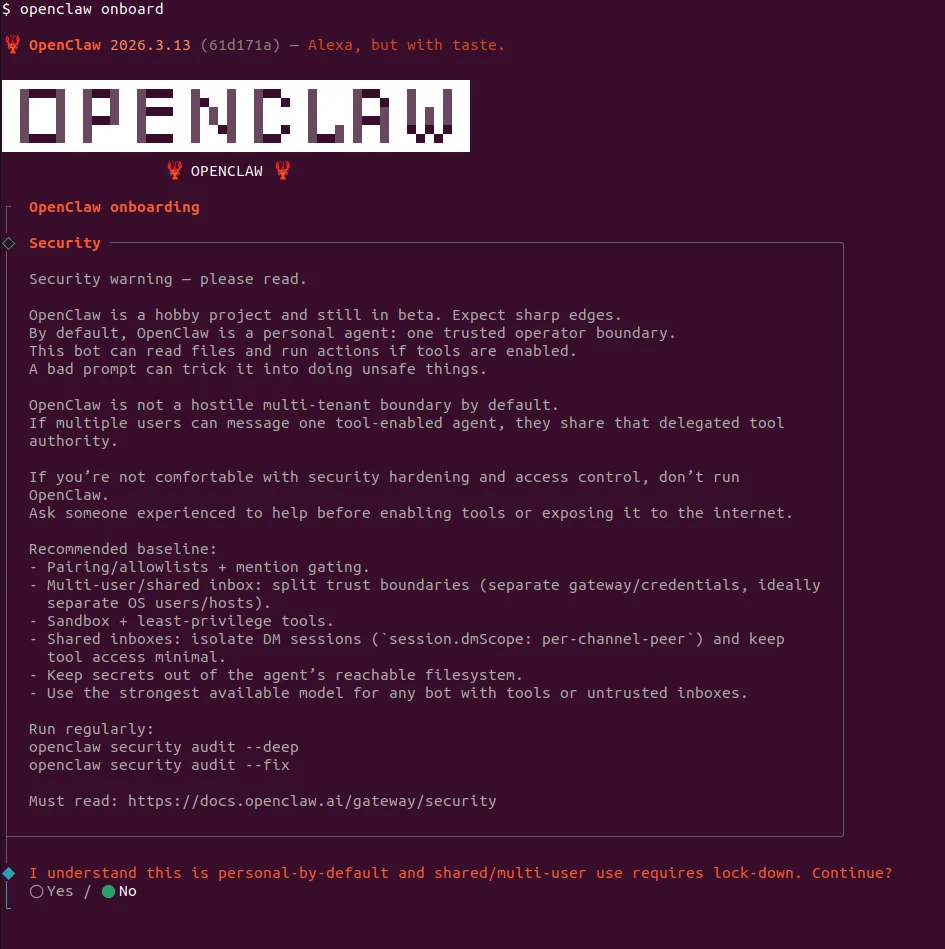
The screen that appears is basically where OpenClaw says “I’m powerful but I can also be dangerous.” This screen displays the following warnings:
- “This is not a chatbot”
- “I can be tricked with prompts”
- “Multi-user is dangerous”
- “Don’t use if you don’t know security”
When running AI agents with tool access like OpenClaw, isolating them in a container (Docker) provides a basic security layer.
Configuration Steps
The setup wizard will ask you for several configuration settings:
1. Model and Authentication
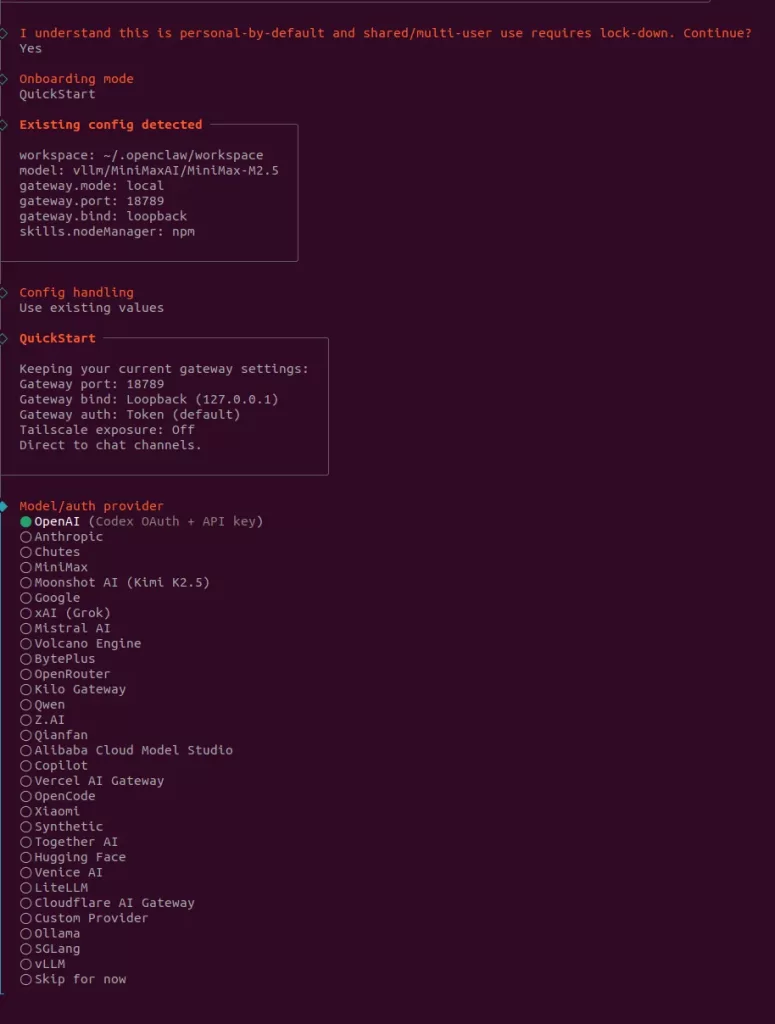
Here we select the model and authentication provider for OpenClaw. This is the step where we determine which LLM the agent will use and how it will connect to that model.
Before choosing Ollama, running LLMs on Jetson-based devices (such as NVIDIA Jetson Nano Developer Kit, Jetson Orin NX, and Jetson Orin Nano) is challenging due to limited RAM and storage. These constraints should be considered. Ollama reduces disk and memory usage significantly by using quantized models and simplifies model management. Therefore, it provides a practical and efficient solution for edge AI applications.
You can install Ollama as follows:
After that, you can download models using the ollama run command. For example:
Below is a list of recommended models and their performance comparison:
| Model | Quality |
|---|---|
| Llama 3.1 8B (Q4) | Excellent |
| Mistral 7B (Q4) | Excellent |
| Phi-3 Mini (Q4) | Good |
| Gemma 2B (Q4) | Fast |
| TinyLlama 1B (Q4) | Basic |
| Qwen2.5 7B (Q4) | Excellent |
2. Platform Selection
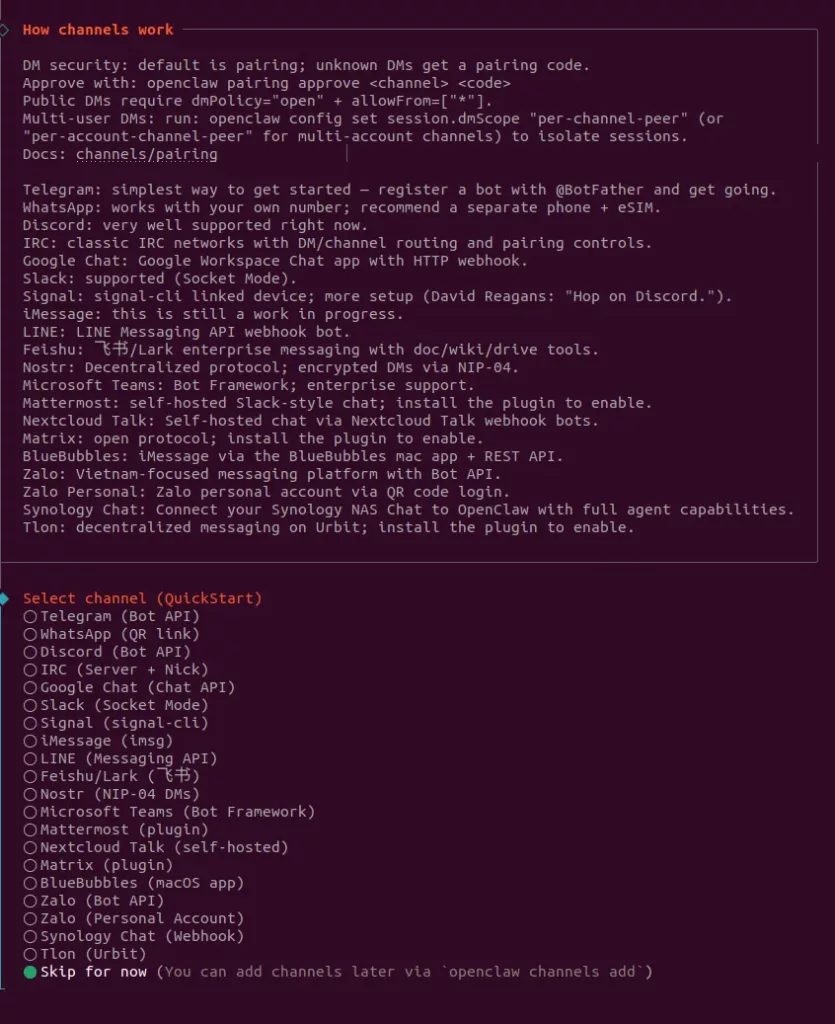
Here we select which platform the OpenClaw agent will run on (e.g., Telegram, WhatsApp, Notion). This is the step where we determine which channel users will communicate with the agent through.
3. Search Provider
Here we select the search provider service that will give the OpenClaw agent the ability to search the internet. This is the step where we determine which search engine (e.g., Brave, Google, etc.) the agent will use when searching the web.
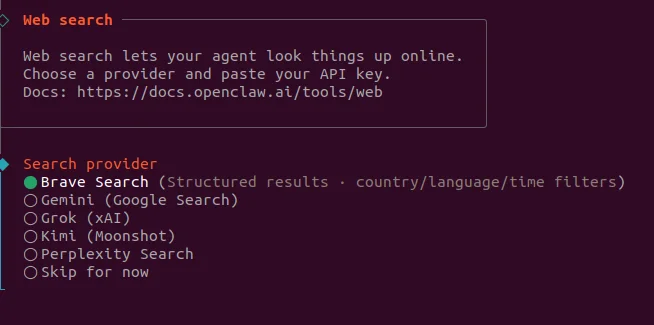
4. Skills
Here we select which skills (abilities) will be added to the OpenClaw agent and whether the necessary dependencies will be installed. This is the step where we determine which tools the agent can use (e.g., GitHub, web, file operations, etc.).
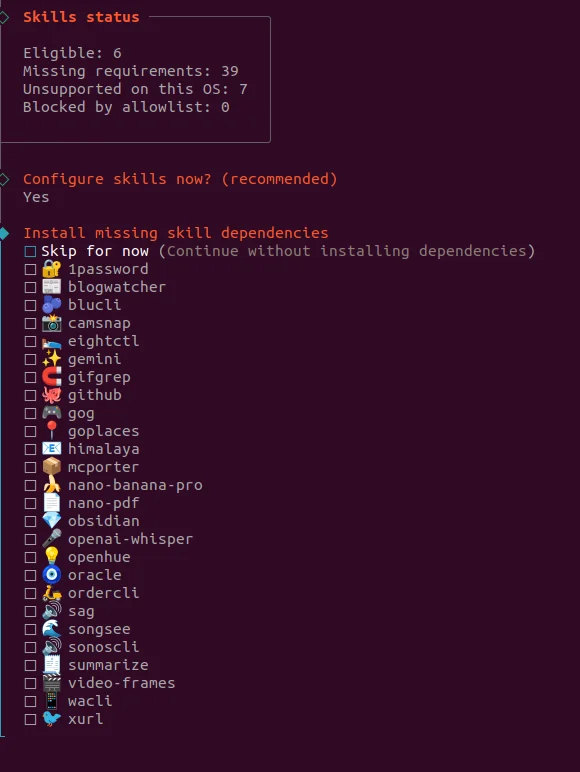
You can also download skills separately from Clawhub.ai. To download a selected skill from there:
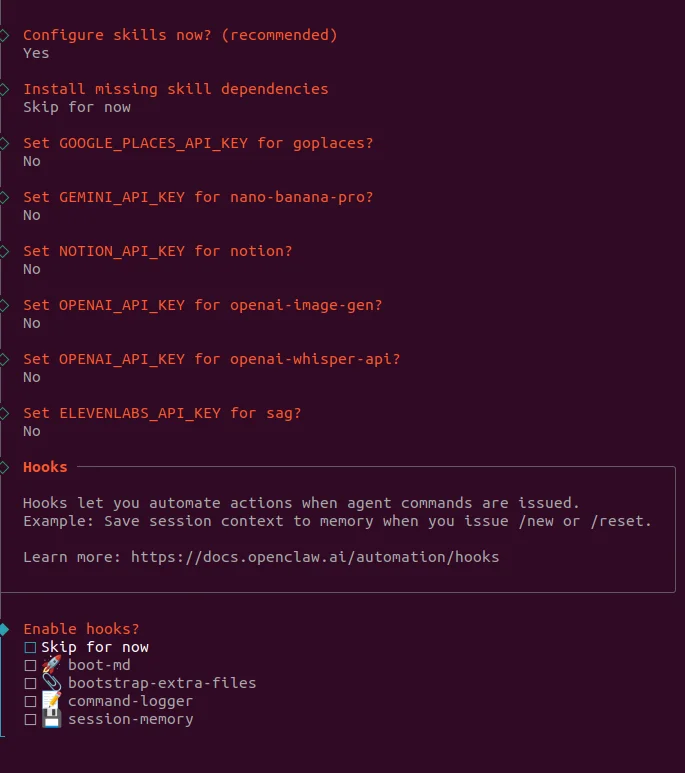
5. API Keys and Hooks
Here we offer options to enter API keys for some skills connected to the OpenClaw agent and enable automation (hooks) features. This is the step where we determine whether the agent will integrate with external services and take automatic actions on certain commands.
What are Hooks?
Hooks are actions that automatically run when a specific event occurs in OpenClaw. For example, when you give a command, the agent can log or save the conversation to memory without you needing to do anything extra. This structure automates repetitive tasks and makes the agent act more “intelligently.”
In short, hooks allow the agent to do some work on its own in the background.
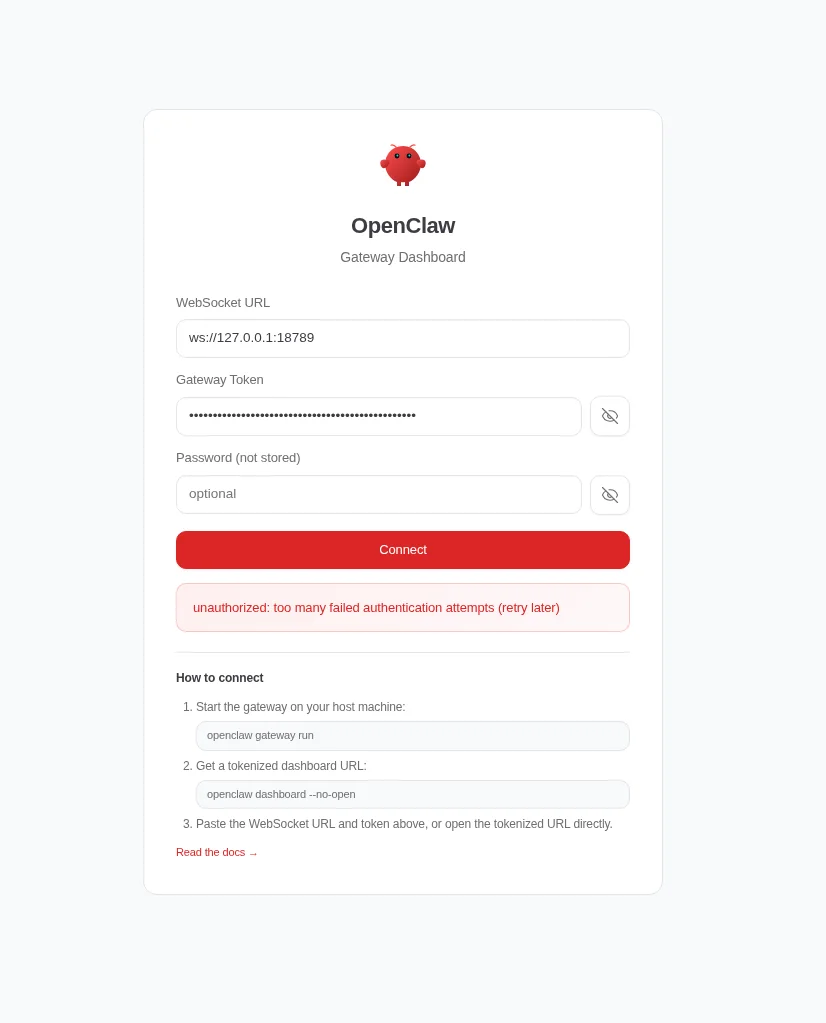
Desktop Application
After pasting the command into the terminal, you will receive a key. You can use this key to access OpenClaw via the dashboard.
How Are Agents Controlled
In OpenClaw, the behavior, tasks, and identity of an agent are defined by .md files. These files essentially work as the agent’s memory, personality, and skill configuration.
Core Files
| File | Description |
|---|---|
| AGENTS.md |
The main file that defines how the agent operates. It specifies which files to read at startup and how to behave.
|
| SOUL.md | Defines the agent’s character, behavior style, and limits. This is where “what kind of entity” it is comes from. |
| USER.md | Determines who the agent is talking to and how to address them. |
| IDENTITY.md | Holds the agent’s name, style, and general identity. |
| TOOLS.md | Defines which tools the agent can use. |
| HEARTBEAT.md | Allows the agent to perform periodic checks. If empty, it does nothing; if filled, periodic tasks run. |
| BOOTSTRAP.md | Used for the agent to introduce itself when first started. Usually deleted after setup. |
These files can be found in this directory:
/home/your_username/.openclaw/workspace